Import Access Data
This example teaches you how to import data from a Microsoft Access database. In Excel, when you import data, you make a permanent connection that can be refreshed.
1. On the Data tab, in the Get & Transform Data group, click Get Data.

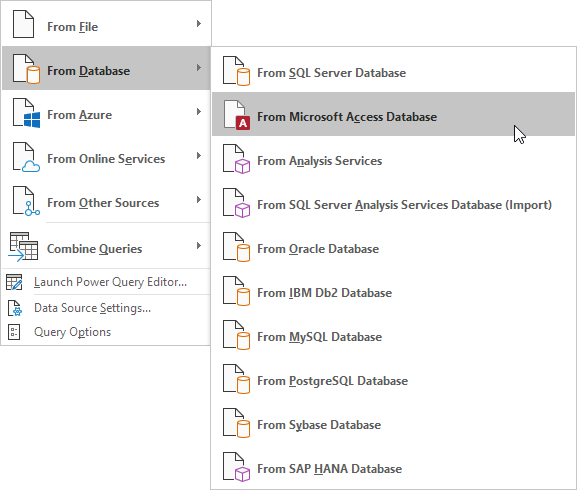
2. Click From Database, From Microsoft Access Database.
3. Select the Access file.

4. Click Import.
5. Select a table on the left side of the Navigator window and click Load.
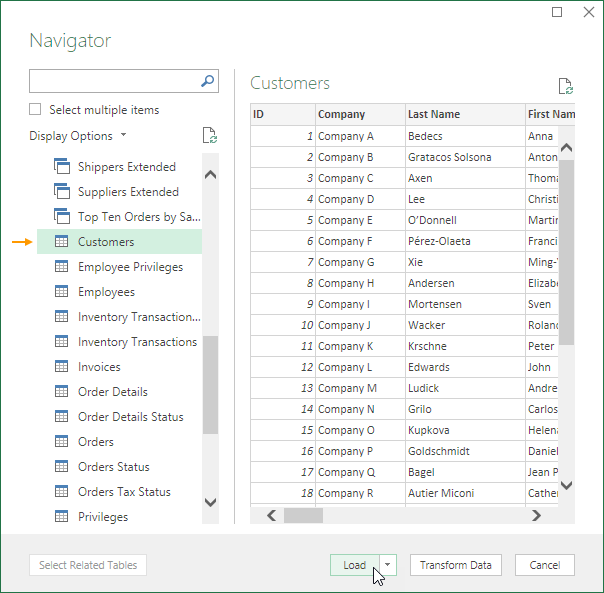
Result. Your database records in Excel.

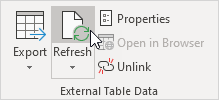
6. When your Access data changes, you can easily refresh the data in Excel. First, select a cell inside the table. Next, on the Table Design tab, in the External Table Data group, click Refresh.