
Comments
Insert Comment | Delete Comment | Show Comments
Insert a comment in Excel to start a conversation or to give feedback about the content of a cell. Old style comments are still available and are now called notes.
Insert Comment
To insert a comment, execute the following steps.
1. Select a cell.
2. Right click, and then click New Comment.
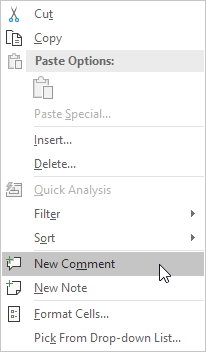
Tip: to insert an old style comment, click New Note.
3. Type your comment and post it.
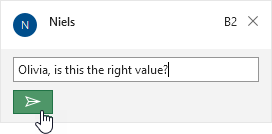
Excel displays a purple indicator in the upper-right corner of the cell.
4. Hover over the cell to view the comment.
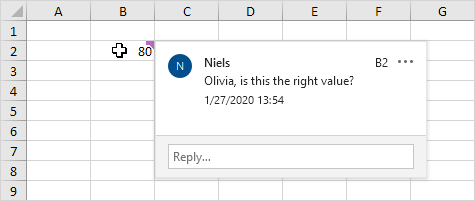
5. To edit a comment, hover over the comment and click Edit.
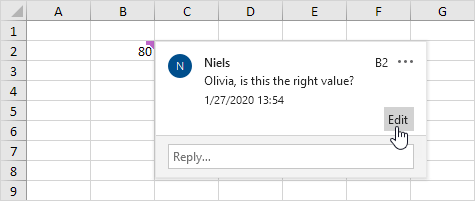
6. Others can now reply to your comment.
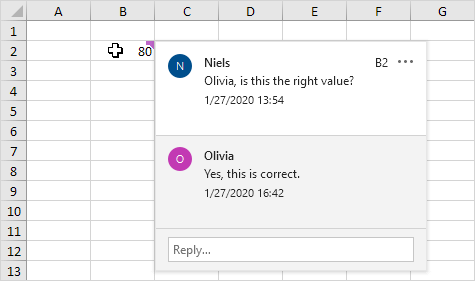
Tip: use OneDrive to share your Excel file with other people.
Delete Comment
To delete a comment, execute the following steps.
1. Select the cell with the comment.
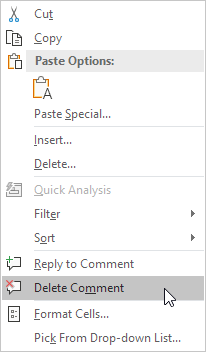
2. Right click, and then click Delete Comment.
Show Comments
To view all comments in an Excel file, execute the following steps.
1. On the Review tab, in the Comments group, click Show Comments.
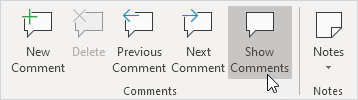
Tip: instead of using the Review tab, simply click the Comments button in the upper-right corner of the ribbon.

Excel opens the Comments pane with all comments in this Excel file.
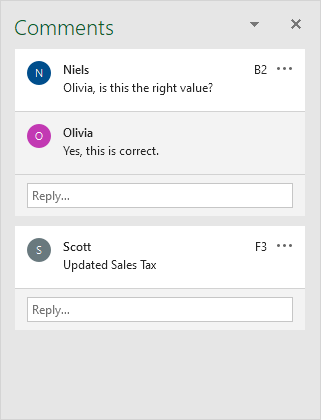
Tip: you can also use this pane to edit, reply to, and delete comments.


